We will continue discussing those little details worth knowing to be able to switch from working in ArcMap to ArcGis Pro. In ArcMap, you display the attribute table with the right click on the layer in the legend window and open the table , or by clicking on properties -> fields to view and edit the table structure. In ArcGis Pro, just the first part is similar . If you want to work on the structure of the table you must use the following option in the layer menu : “Design” then “Fields” ( or Domains, or Subtypes if you must take action on them ).

This command opens the “Fields” window
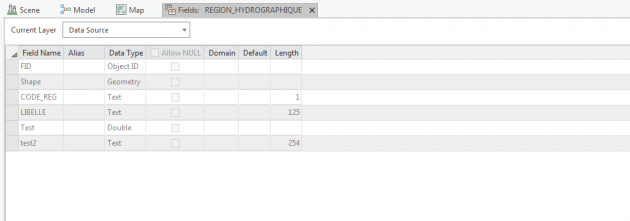
In the case of a shape file

In the case of an entities class geodatabase .
The main differences with ArcMap
The main difference between ArcMap and ArcGis Pro is the disappearance of the ” editing session “. When you open a table, you can edit it without opening , as in ArcMap, an editing session , simply by double clicking in a table cell. If you want to protect the table content, you have to go through the “Fields” window . Right here you find a new column available : “Read Only”. If the box is checked for an attribute field , you will not be able to edit it any longer directly by opening the table. Firstly, you will have to change this property by unchecking the corresponding box . The other novelty , really useful, is the association of a display format for the digital data. This format will be used to display the field value every and each time this value is used in ArcGis Pro.

All potential formats are in the drop-down menu list, and for those that do not appear , the “Custom” option allows you to define them . In each list format, an adapted window allows to perform the formatting . For example , for “Percentage”:

Last modification of this “Fields” table, when you delete fields, they do not disappear from the display . Their contents is crossed out and the table line is marked on the left with a dark green square .

At any time, you can come back and restore the records, till you want to apply your changes. To that end , you must click on the “Save” button on the ribbon .

In the next article we will discuss the use of domains and subtypes in ArcGis Pro.


