Location maps allow a more global overview of the study area represented on the main map

The principle is very simple: these are two maps in a single setting. The location map will have a particular feature: we will freeze the area , the layers displayed and the symbology of these layers once for all . The only variable will be the area rectangle which is managed by QGis itself . To begin, click on the menu Project-> newsettingonpage or open the update manager and create a new setting.

In the layout setting window, add the main map (menu Add an element -> Add map) and the location map (idem)

Note that while the main map is named map 1 and the one location map 2.
You will start by defining the location map:
1- in the QGis Mapping window, zoom the window contents to the desired level in the location map.
2- display only the layers you want to see in the location map by disabling the display of the other layers.
3- modify , if necessary , the visible layers symbology. For example, the thickness of the lines is generally thinner for the location map than for the main map . 4-check in the layout setting manager that the result matches your what you aim for. To do that , having selected Map 2, you have to click UpdatePreview in the Main Properties panel.

In the layers panel, select the Locklayers box and Lockthe layersstyle. To ensure that there will be no other changes, check the map 2 lock box in the Elements window

Your location map is formatted.
Now you are going to take care of the main map by formatting it (zoom, symbology , etc …)
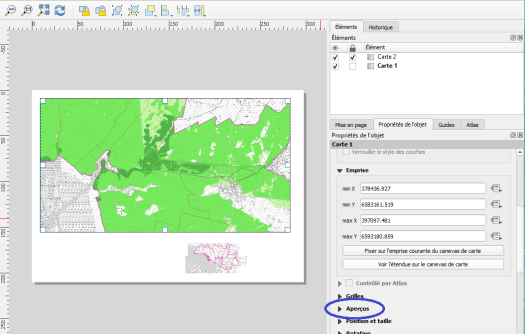
Once completed the main map formatting, you only have to connect both maps in a way that the location map to displays the area of your main map .
To do that you have to unlock map 2, click to select it , open the Previews panel of your location map. Click the + button to add a preview in the list. It will be named Overview 1.

To set the preview, you have to indicate which area it must show . In Map frame , select Map 1

You can change the style ( color , outline, etc. ) by opening the Frame Style

From that point on, if you change the area of the main map , the extent displayed on the location map will be modified automatically.


